Crypto Whale Alert Telegram Bot (Free n8n Template) – CoinGecko
Monitoring the movements of large holders, or “whales”, is one of the most effective ways to anticipate market volatility. While retail traders often react to price movements after they occur, institutional investors and high-net-worth individuals leave on-chain footprints prior to significant market shifts. Analyzing this “smart-money” data in real-time provides actionable insights into potential volatility and informs trading decisions.
In this guide, we will build and deploy a free Crypto Whale Alert Bot using n8n (a low-code / no-code workflow automation tool) and the CoinGecko API. This bot continuously scans decentralized exchange (DEX) liquidity pools, filters for high-value transactions, and delivers immediate alerts directly to your Telegram Channels.
To get started, you can download the free n8n workflow template linked at the end of this article and follow the setup steps below.
A Crypto Whale Alert Bot is a monitoring system designed to give traders an information advantage by tracking the behavior of large holders. In the context of digital assets, the crypto whale meaning refers to individuals or entities holding significant amounts of cryptocurrency. Because their movements can single-handedly impact liquidity and price, this bot acts as an early warning system, notifying users of large on-chain swaps that may signal impending volatility.
Instead of relying solely on lagging price indicators, traders use these automations to:
Anticipate Volatility: Large on-chain movements often precede price spikes or corrections on centralized exchanges.
Monitor New Liquidity: Track crypto whale activity in new or low-cap pools where a single large trade can drastically alter the token’s valuation.
Before understanding the setup, here’s a high-level overview of how the n8n automation works: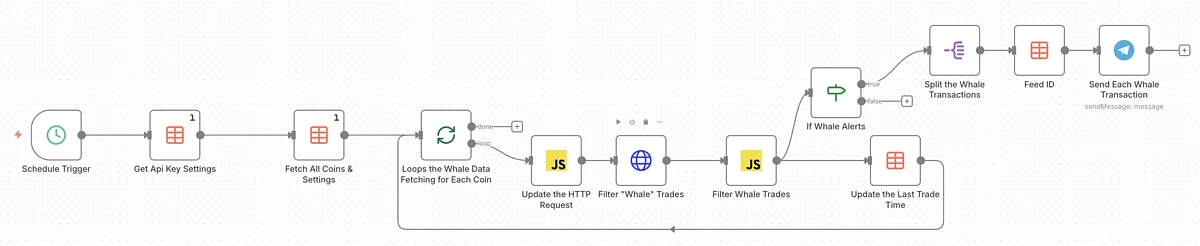
Schedule Trigger: The workflow activates on a recurring timer (e.g., every 5 minutes).
Fetch Watchlist: The bot retrieves your target assets from a n8n Data Table, which contains the specific Pool Addresses and respective USD thresholds to monitor.
Query On-Chain Data: The system requests the last 24 hours of trade history for each pool using the CoinGecko API’s /onchain/pools/trades endpoint. This returns detailed trade data, including transaction volume, value, trade type (buy/sell), and wallet addresses.
Conditional Logic: The bot analyzes the returned trades and isolates only the transactions where the USD volume exceeds your defined threshold.
Telegram Notification: If a qualifying trade is found, the bot formats the transaction details and sends an alert to your connected Telegram channel.
Before you start, ensure the following requirements are met to use the template effectively:
n8n Account:
Access to n8n via their Cloud service or a local installation.
Messaging Credentials:
A Telegram Bot Token (from @BotFather).
n8n is an open‑source, node‑based workflow automation tool that lets you visually connect apps, APIs, and data sources without writing code.
Because it’s open-source, you can either self-host n8n or sign up for their hosted solution – also known as n8n Cloud.
This is the fastest way to get started. n8n Cloud requires no coding or server configuration. Simply sign up for an account (includes a 14-day free trial) and you will have a production-ready environment immediately.
One way to run n8n locally is by using Node.js.
First, you need to open a port so external services can reach your local n8n instance. This is required for integrations like the Telegram Message Trigger, which rely on incoming webhooks from external services.
A simple solution for this would be to use a tunneling service (like ngrok or localtunnel) and set the WEBHOOK_URL environment variable so those services can reach your workflows.
Install LocalTunnel: Open your terminal and run the following command to install the tunneling service:
npm install -g localtunnel
Start the Tunnel: Expose port 5678 (n8n’s default port) to the web:
lt --port 5678
Copy the URL provided by this command (e.g., https://your-subdomain.loca.lt).
Start n8n with Webhook: Run n8n while telling it to use your new tunnel URL for webhooks:
set WEBHOOK_URL=https://your-subdomain.loca.lt && npx n8n
Once your n8n environment is running, you must configure the workflow template. This template uses a database structure to store your settings, allowing you to change API keys or add new liquidity pools without ever touching the complex workflow logic.
Before configuring credentials, you need to import the workflow logic into your n8n instance.
Download the workflow template JSON file (linked at the bottom of this article).
Open your n8n dashboard and create a new empty workflow.
Click the three-dots icon in the top right corner and select “Import from file“.
Upload the n8n workflow template JSON file. You should now see the complete node structure appear on your canvas.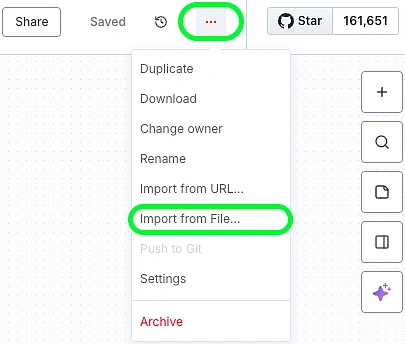
To obtain your Telegram bot API key, open Telegram (desktop or mobile) and search for “@BotFather”, the official Telegram bot for creating and managing other Telegram bots.
Start a chat with BotFather and send the command /newbot. It will then prompt you first for a display name and then for a unique username ending in “bot”.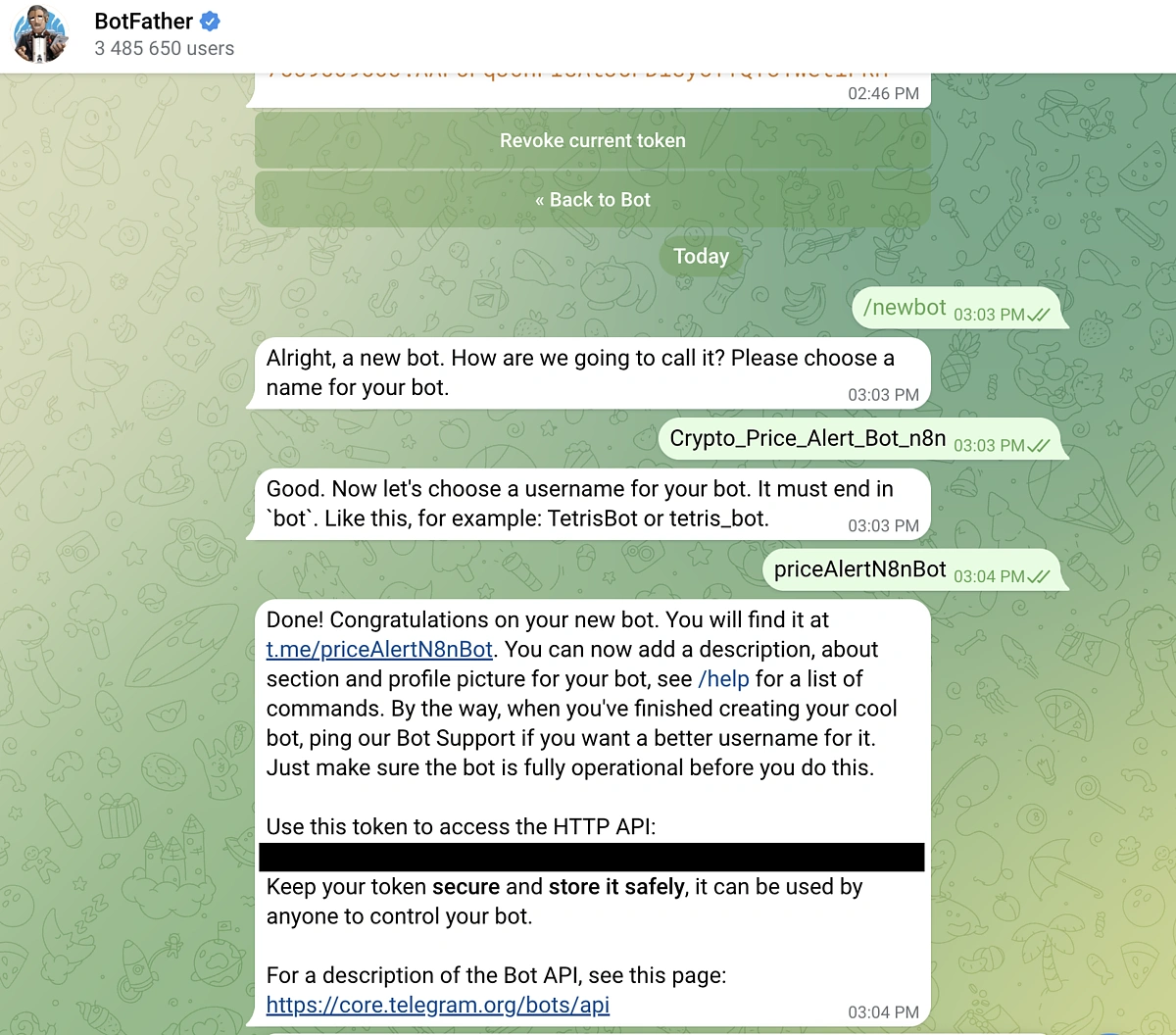
You’ll then receive a message that contains the access token (API key) for your Telegram bot. Store this securely for now, as you’re going to need it later on.
This template stores all necessary configurations and credentials in n8n’s native data store tables, making it easy to manage your settings in one place. The tables will also serve as a way to configure other essential settings when using the template.
Locate the “Get Api Key Settings” node
Create a new Data Table and name it “BotSettings”
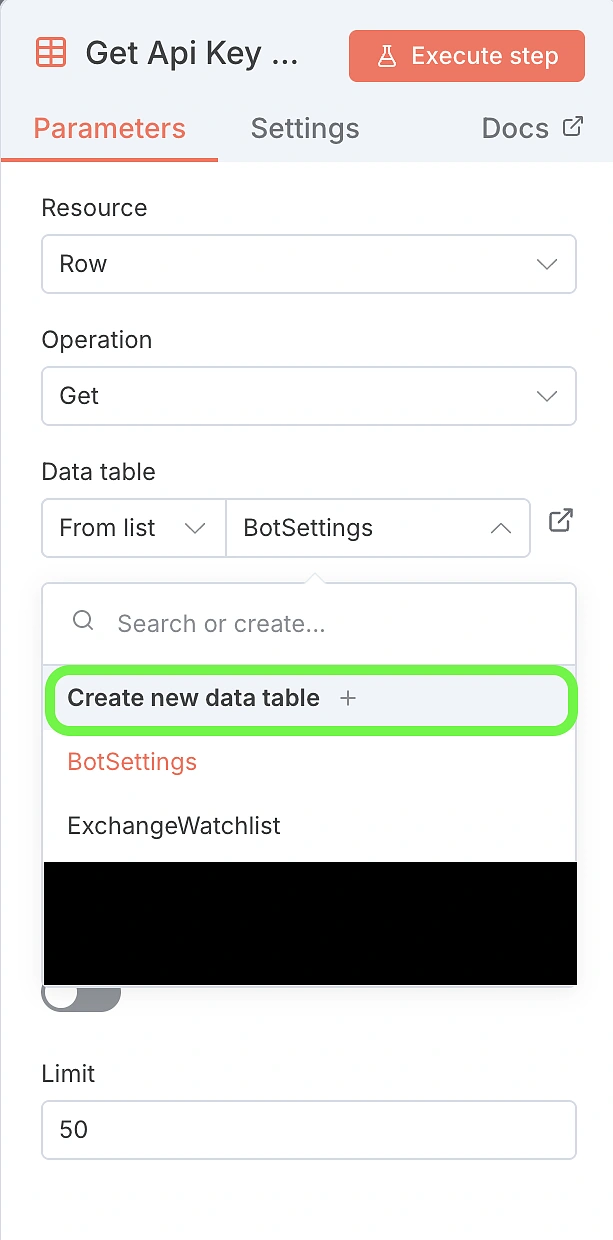
Set up the Table Columns
Edit the table by clicking “Add Column” to create the structure for our database and add the following columns:
setting_key : Stores all Key names that will be used by our workflow.
setting_value : Stores all the values for the respective Keys.
Add Your Credentials (Rows)
Now, click “Add Row” to input your specific keys. Type the following, exactly as shown in the setting_key column:
api_key: Paste your CoinGecko Demo or Pro key in the setting_value column.
api_type: Enter demo or pro in the setting_value column.
telegram_chat_id: Paste your Telegram Chat ID in the setting_value column. This can be found by interacting with @RawDataBot.
With your API credentials successfully configured in the BotSettings table, your bot has access to the market, but it doesn’t yet know what to track. To fix this, you need to configure exactly which liquidity pools the bot should monitor.
Start by creating a brand new data table and naming it WhaleWatchlist. This separation allows you to keep your active watchlist distinct from your sensitive API configurations. Once your table is ready, add the following necessary columns:
pool_address
network
threshold_usd
last_trade_time
token_name
Click “Add Row” to initialize a new entry. In order for the bot to fetch accurate data, you must provide the specific Pool Address (not the Token Address) for each asset.
To find the Network ID and Pool Address, head to the individual token page on GeckoTerminal. The Network ID is found in the URL path (e.g., solana in https://www.geckoterminal.com/solana/pools/GF6SiMJbng7FhBgzp1Uyrwzh6wS78XwXY9FRqrxNHhBV), and the Pool Address is listed in the pool details section of the page.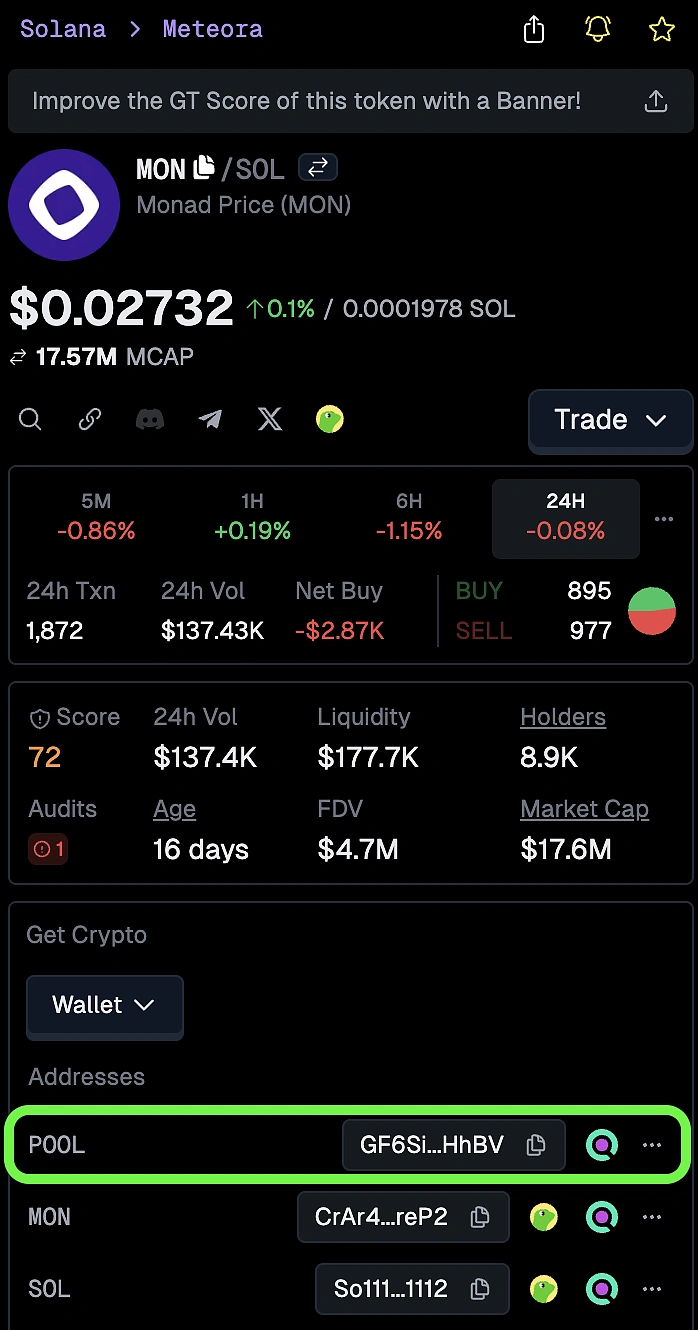
Finally, indicate the Token Name you want displayed in your Telegram alerts (e.g., “Monad”), and set the threshold_usd. This value serves as your minimum trade size, essentially, any transaction value exceeding this number will be flagged as a “whale trade” and trigger a notification.
Now that your database tables are populated, you need to link them to the workflow nodes so the automation can access your keys and watchlist. You will need to link your Telegram identity and your new data tables to the specific nodes that rely on them to function.
Your bot requires permission to both listen for commands and broadcast alerts. To ensure consistent communication, you must apply your credentials across the entire workflow.
Open the “Send Each Whale Transaction” Telegram node.
In the Credential field, select the Telegram credential you configured in Step 2 above.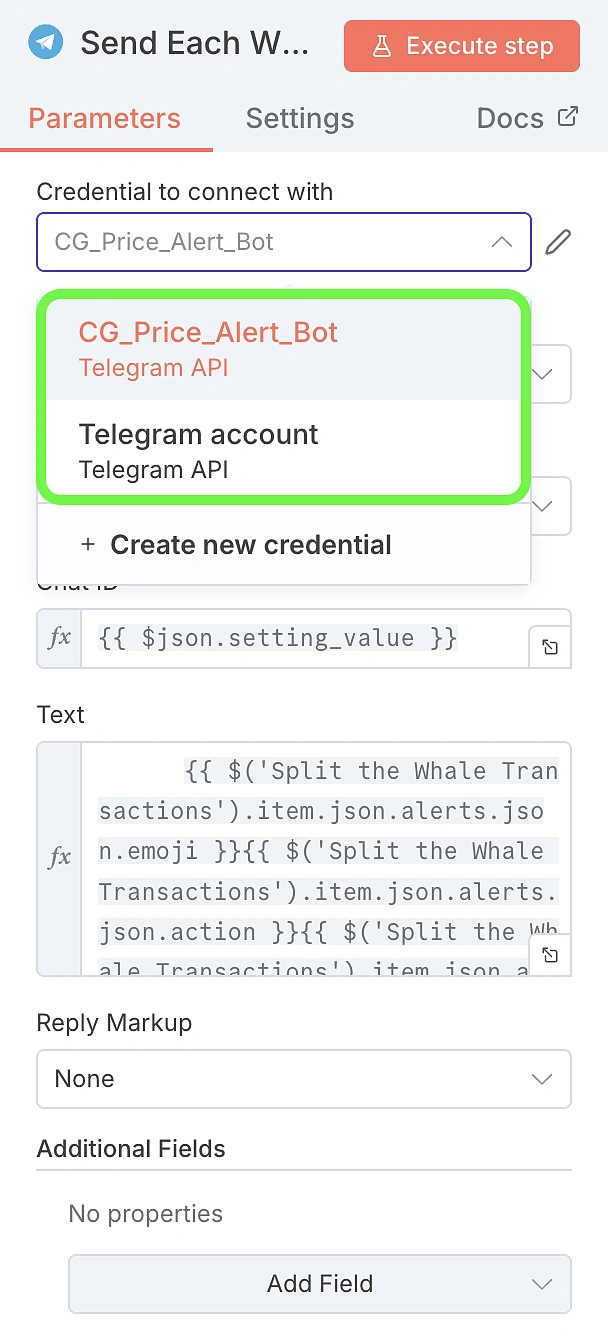
The workflow contains specific nodes designed to read or write data. You must point these nodes to the correct tables you created earlier so they can access your coin list and API keys.
For the “WhaleWatchlist” Table: Locate the following nodes and set their Data table field to WhaleWatchlist:
Fetch All Coins & Settings
Update the Last Trade Time
For the “BotSettings” Table: Locate the following nodes and set their Data table field to BotSettings:
Get Api Key Settings
Feed ID
Once these connections are established, your workflow is fully integrated with your custom settings and is ready for deployment.
Finally, you need to configure how often the bot checks for the latest prices.
Open the Schedule Trigger node.
Set the interval to your desired frequency (e.g., every 15 Minutes or 1 Hour).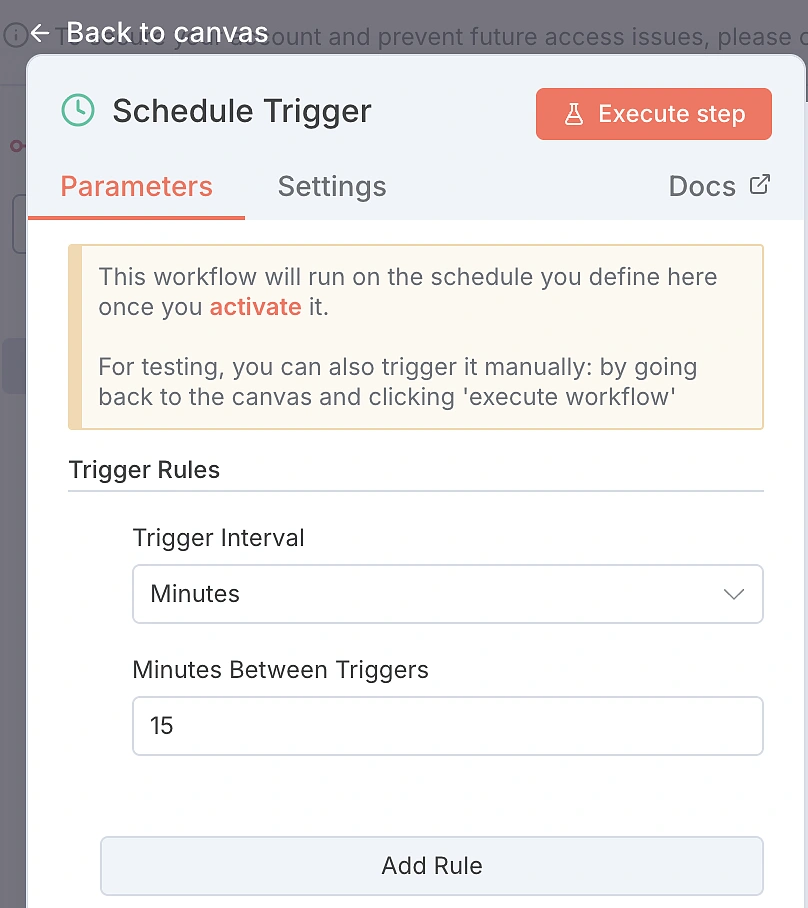
Note: If you are using a free Demo API key, avoid setting this lower than 5 minutes to prevent exhausting your call credits. To run more frequent price checks (e.g., every minute), consider upgrading to a paid API plan for increased rate limits and call credits.
Once everything is configured, you are ready to launch. Activate the Workflow by clicking on the toggle in the top-right corner of your n8n dashboard where it should turn from Inactive to Active (Green).
Your bot is now live and running in the background. It will automatically poll the CoinGecko API according to your schedule to fetch the latest trades. Whenever a trade occurs that exceeds the threshold_usd you defined for a specific pool, you will instantly receive a notification in Telegram.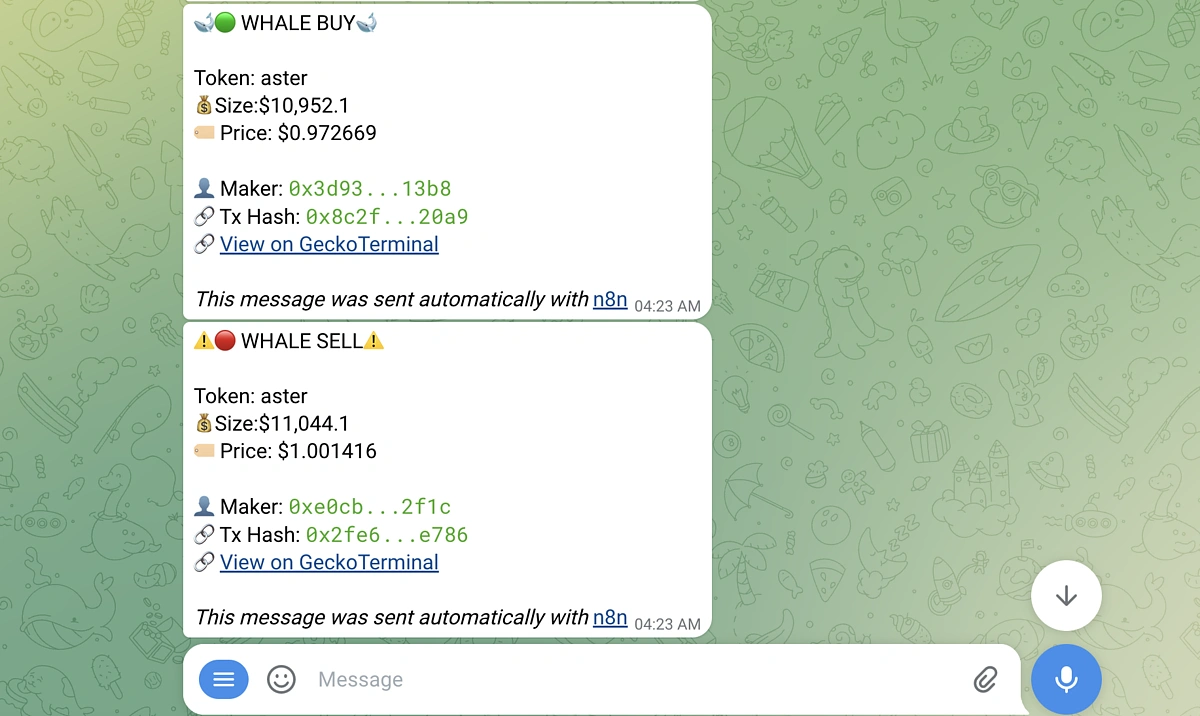
If you encounter errors or the bot stays silent when it should be alerting, here are the most common issues and how to resolve them quickly.
API Rate Limit (Error 429)
If the workflow fails with a “429 Too Many Requests” error, increase the interval in your Schedule Trigger node (e.g., change from 15 minutes to 60 minutes). Alternatively, switch to a Pro API key in your BotSettings table to access higher rate limits.
Telegram Chat ID Not Found (Error 400)
If the bot fails to send an alert or logs a “Chat not found” error, verify that you have added your bot to the target Telegram channel and granted it Admin privileges (specifically “Post Messages”). Also, confirm that the telegram_chat_id in your BotSettings table is correct (for public channels, it usually starts with -100).
No Alerts Are Triggering
If the bot is running successfully but you never receive volatility alerts, the market might be stable. To test the logic, go to your WhaleWatchlist table and temporarily lower the Threshold_usd to 500 for one of the entries. You should receive an alert on the next scheduled run. Also, verify that your WhaleWatchlist table contains valid Pool Addresses and Network Ids.
Invalid Credentials (Error 401/403)
If you see authentication errors in the n8n execution logs, open your BotSettings table and ensure there are no extra spaces pasted in your API Key or Token fields. Additionally, confirm that the api_type row matches your key type (enter demo for free Demo API plans or pro for paid API plans).
Node or Data Name Mismatch (Reference Errors)
If you see errors like “Referenced node does not exist” or “Cannot read property of undefined”, the custom code blocks in this workflow rely on specific names to locate your data. If you renamed a node or a column header, the code will fail to find the information it needs. To fix it, double-check that your Node Names (e.g., BotSettings, WhaleWatchlist) and Column Headers (e.g., setting_key, threshold_usd) match the guide exactly (they are case-sensitive). Also, ensure the row identifiers in your settings table (like api_key and api_type) are spelled correctly, as the code specifically looks for those text strings.
Once you have the base logic running, you can integrate additional nodes to expand the bot’s capabilities. Here are three recommended upgrades to turn this into a professional-grade tool:
Instead of just reporting that a whale moved, tell your users why it matters. You can connect this workflow to an LLM (like OpenAI or Anthropic) to analyze the on-chain data and generate a summary of the trade’s potential impact.
Check out our guide on building an AI Crypto Telegram Bot to see how to add an AI Agent to your automation.
Currently, this workflow monitors specific liquidity pools (e.g., just the Uniswap v3 USDC/ETH pool). However, whales often split their orders across multiple exchanges to minimize slippage. To capture this activity, you can upgrade to a paid CoinGecko API plan and use the Past 24 Hour Trades by Token Address endpoint. This exclusive endpoint aggregates trades from multiple pools associated with a specific token, rather than tracking a single pool address.
Instead of restricting critical market alerts to Telegram, deliver them to where your users are most active. This workflow natively supports parallel execution, allowing you to attach Discord and Slack nodes alongside your Telegram output. With formatting logic pre-built into the design, you can activate new channels simply by updating the discord_channel_id column in your BotSettings table to manage where the messages go without changing the code.
Automating on-chain monitoring provides a systematic approach to tracking market movements. This free n8n Crypto Whale Alert Bot, powered by the CoinGecko API, offers a robust solution for tracking smart money without the need to constantly monitor DEX screeners.
Because it is built on n8n, your bot runs autonomously in the cloud, ensuring you capture every volatility spike whether you are at your desk or asleep.
If you need to track a larger list of assets or require faster updates, consider upgrading to a paid API plan. This unlocks exclusive endpoints like Trades by Token Address and significantly higher rate limits, allowing you to monitor significantly more markets with precision.
